
Split the window into panes
On a wide window the conversation area splits into panes, side by side or stacked: up to six across and six down. Each pane holds some of your open tabs and shows one of them, with its own plan and subagents strips as header rows, its own composer, and its own status line inside that box. The window is a row of columns, and a column is one pane or a stack of them: every horizontal line belongs to one column, so each column's heights are its own. You drag a tab from one pane to another, and you drag the line between two panes to give one of them more room.
Why you would use it
You are watching one agent work while you type to another, or reading a review in one tab against the code in the next. On one pane that is a tab switch every few seconds, and you lose your place in both.
How to use it
Panes need a window at least 760px wide. Below that the app is the phone layout and the split buttons do nothing.
Click Split right in a pane's header (
data-act="split-right") to put a second pane beside that one, or Split down (data-act="split-down") to put it underneath. Split right makes a column the full height of the window, beside the whole stack the pane is in; split down cuts the pane itself in two. The new pane takes the next open tab that no pane is showing; with no tab left it opens the new-thread card.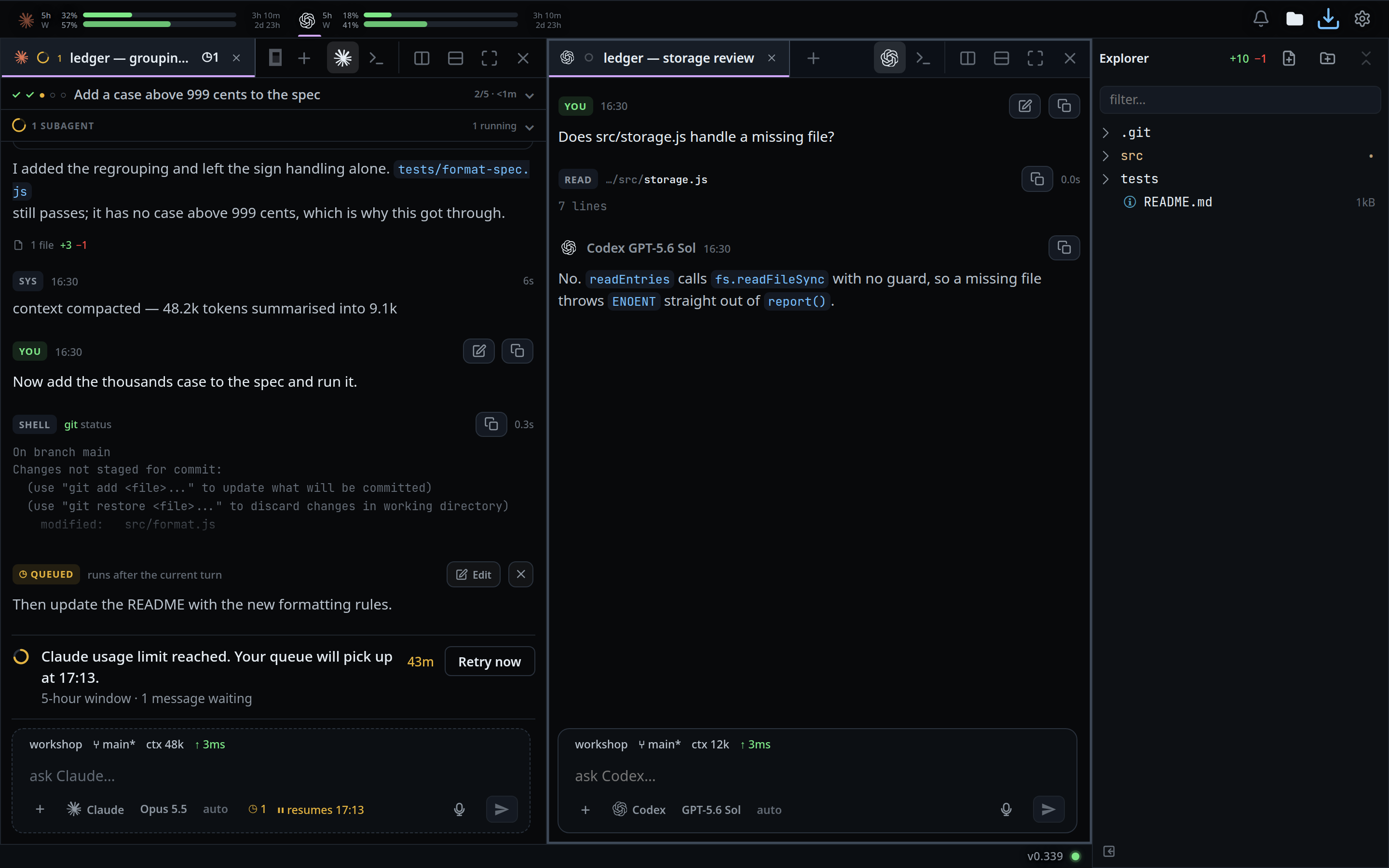
Drag a tab out of its pane's strip and onto another pane's tab strip. A blue caret stands on the seam the tab would go into, the copy of the tab rides in the lane under the pointer, and the tabs from the seam on slide aside to open a gap as far as the strip has room for one.
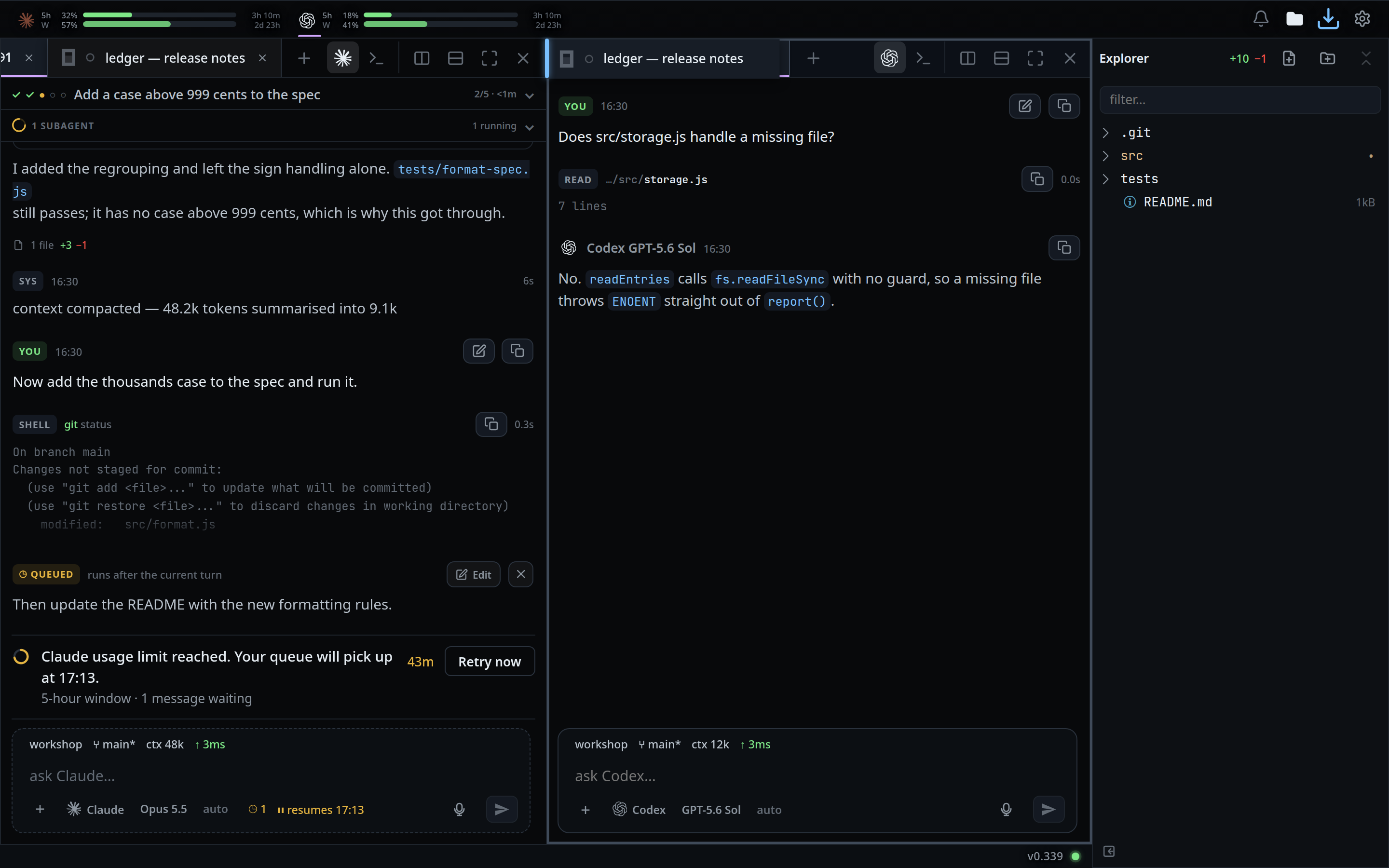
Let go and the tab lands exactly where the caret stood. It leaves the strip it came from, and the pane it landed in takes the focus. A pane whose last tab you dragged away stays where it is, empty, ready for a new thread or another tab dropped back into it. An empty pane is the phone's new-thread page: the VCode logo over a round plus over
new thread, and no composer or stub under it. The pane itself sits a shade darker than the panes beside it, so you can see which one holds nothing without reading its strip. Click anywhere on it and the new-thread card opens; the thread it starts lands in that pane.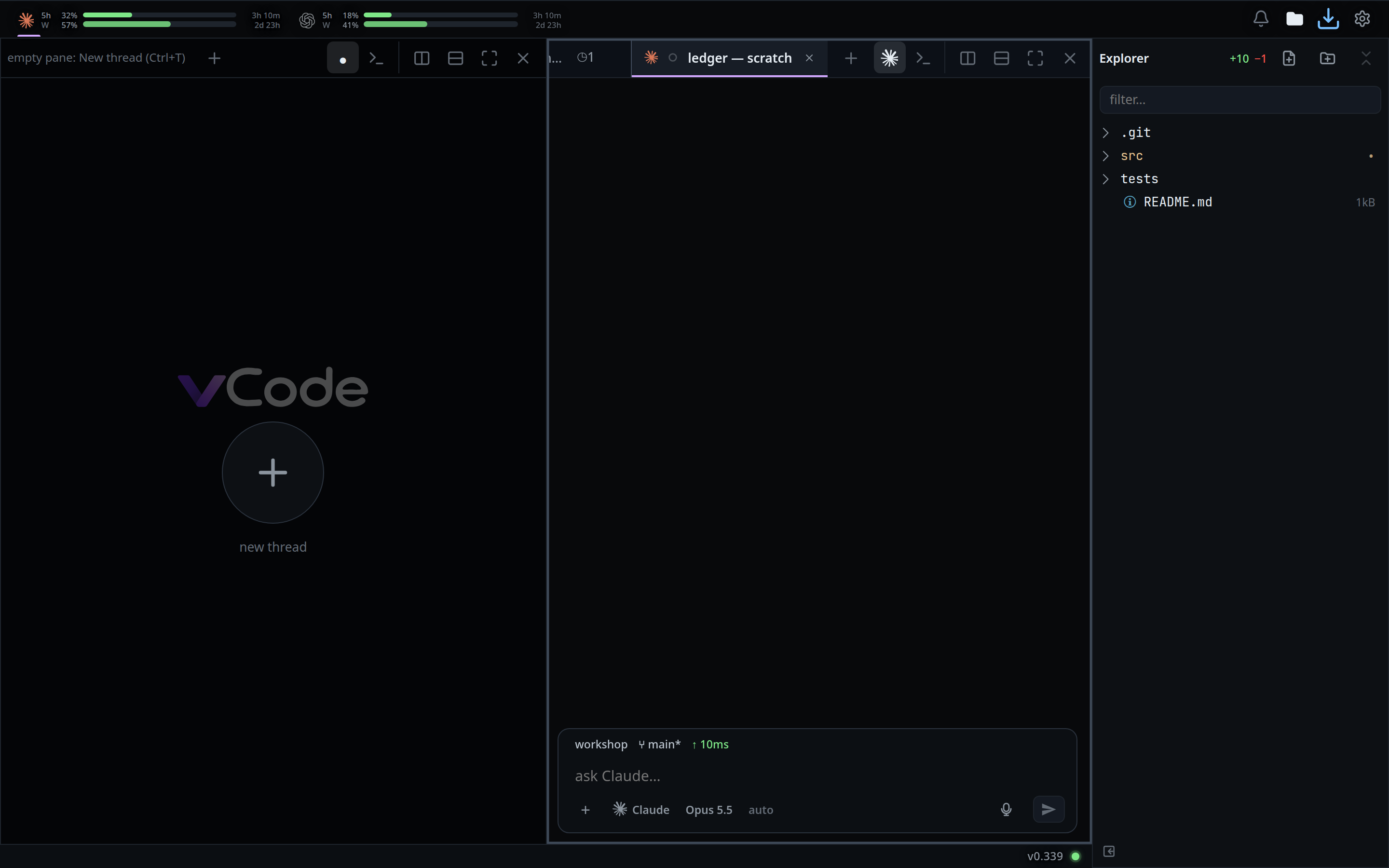
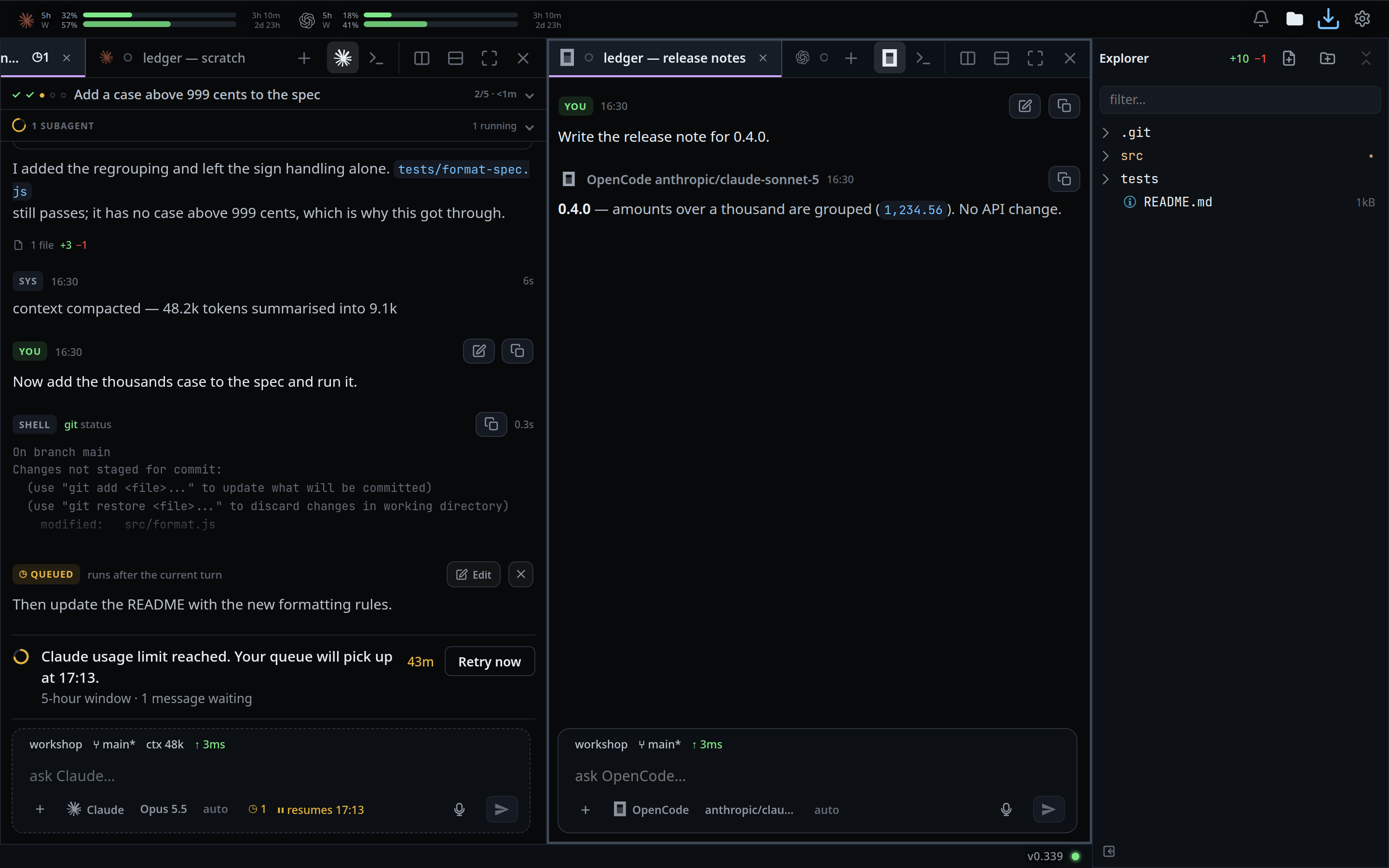
Or drop it on the body of a pane rather than its strip. The whole pane lights up: over the middle the tab joins that pane's tabs at the end of its strip, over the top or bottom edge the highlight is that half of the pane and the drop splits it there. Over the left or right edge the highlight is that half of the pane's whole column, the full height of the window, which is where the new column goes.
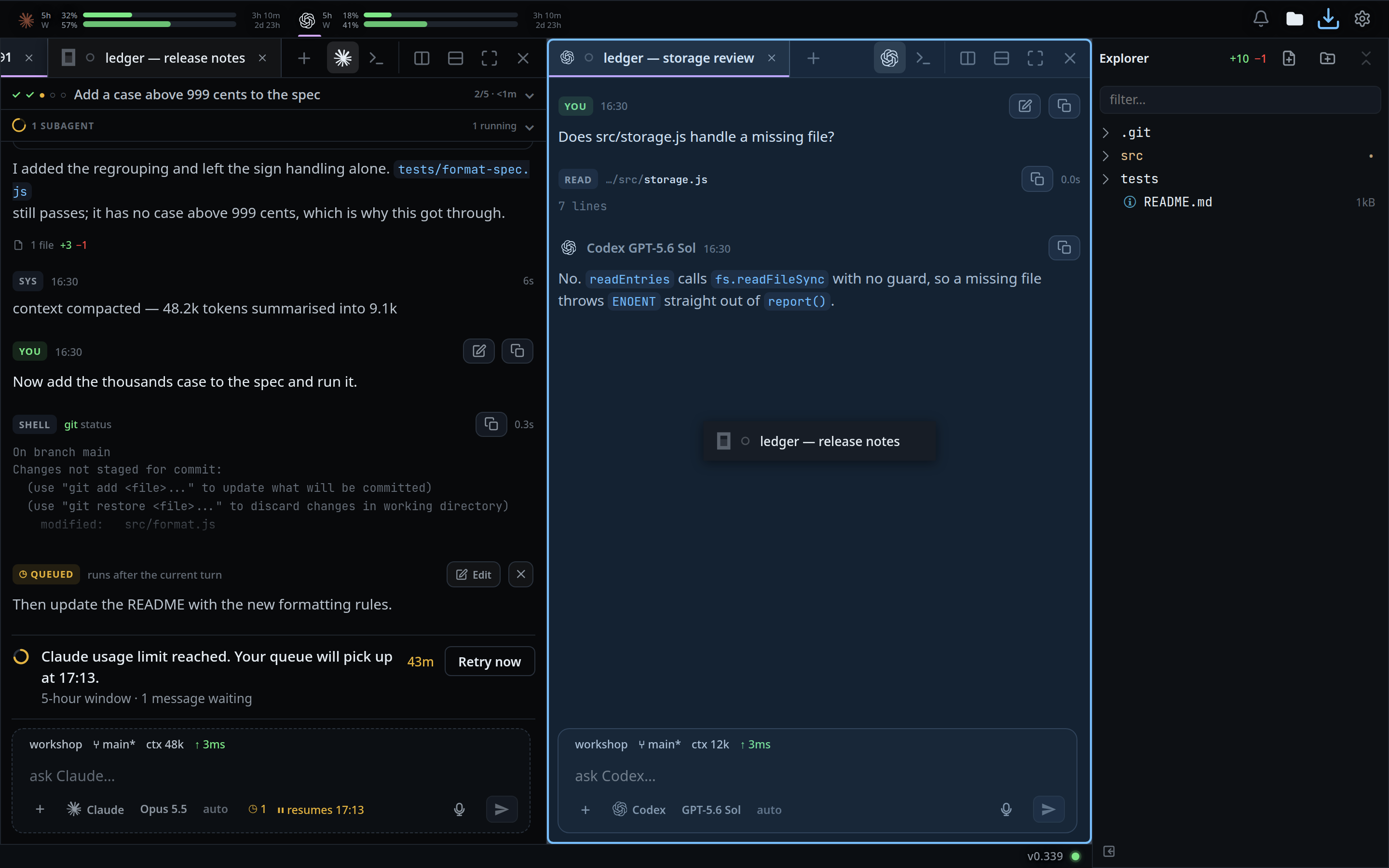
Drag the line between two panes to move it: sideways for panes side by side, up and down for stacked ones. Only the two panes the line sits between change size; every other line stays where it is. The pointer turns into a resize cursor over the line, the panes follow it as you drag, and where you let go is remembered with the rest of the layout. The line goes where your hand goes, wherever on the band you took hold of it, and neither pane goes below 160px. Come within 8px of another pane's line running the same way and the drag lands on it instead of on the pointer, so the two line up exactly; the handle brightens while it is held there.
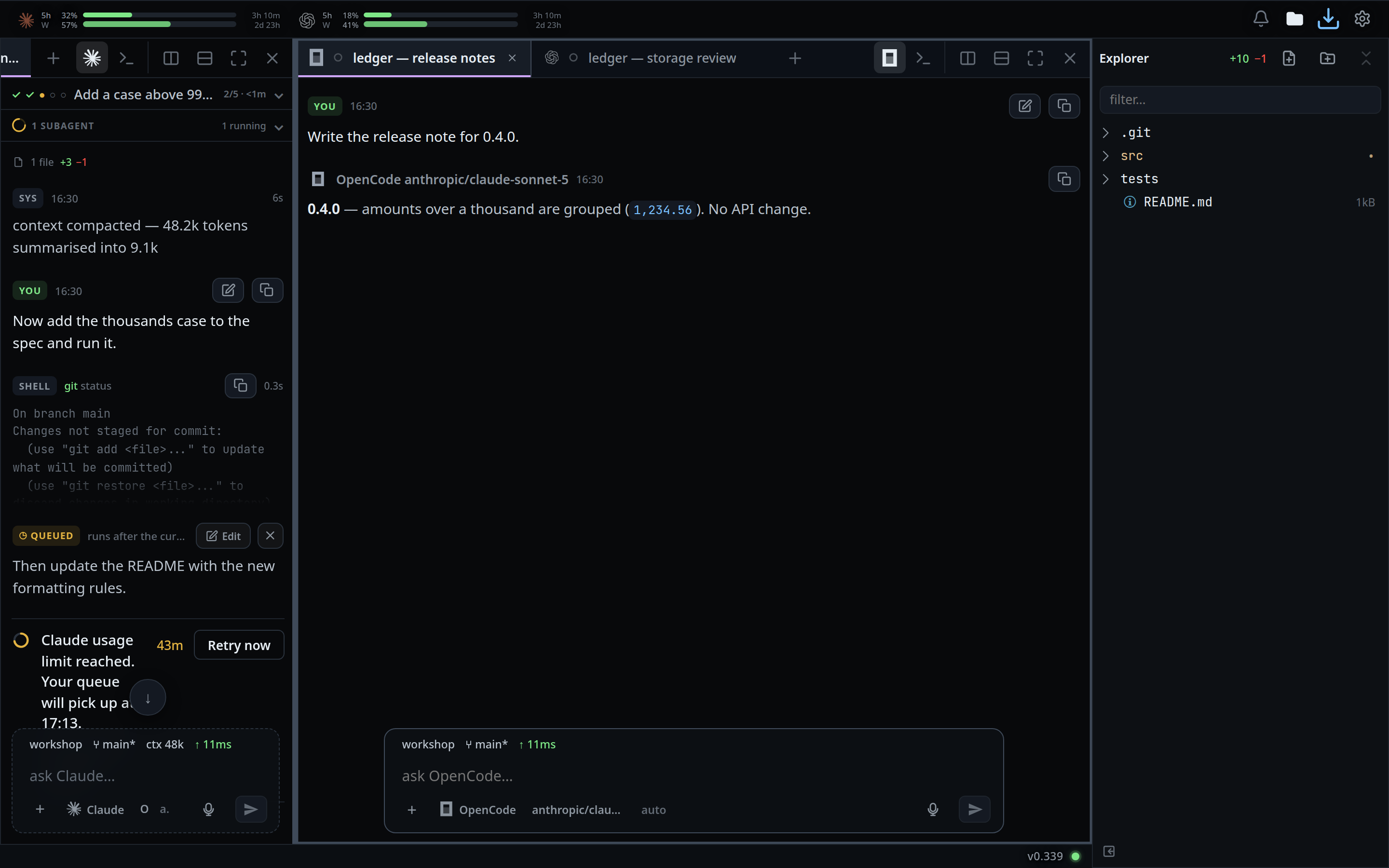
Click anywhere in a pane to focus it. The usage meters and the file explorer follow the focused pane, and so does the composer.
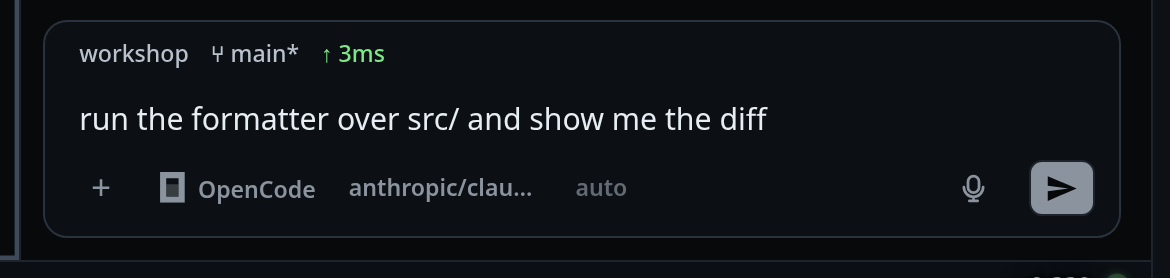
Write in a pane by clicking its composer. A pane that does not have the box shows a stub the same size with a dashed edge, so the footers of every pane line up and nothing moves when the focus does. It reads whatever was typed into that pane's thread, up to the one line the box opens at here, or that thread's own line when nothing was:
ask Claude…,ask Codex…,run a shell command…for a pane left in shell mode, and while that thread's turn runsuse the wheel to steerorqueues until this turn ends, whichever its agent allows. The keys stay too: the stub draws that pane's own attach, agent, model and effort keys, its status line, its mic and its send, where the box draws them, so a pane you are not typing into still says who answers in it, on which model, and on which branch. They are a picture — the tap that reaches them focuses the pane — and a pane with no thread in it shows them dimmed. Clicking the stub focuses the pane, and the box arrives with the caret already in it.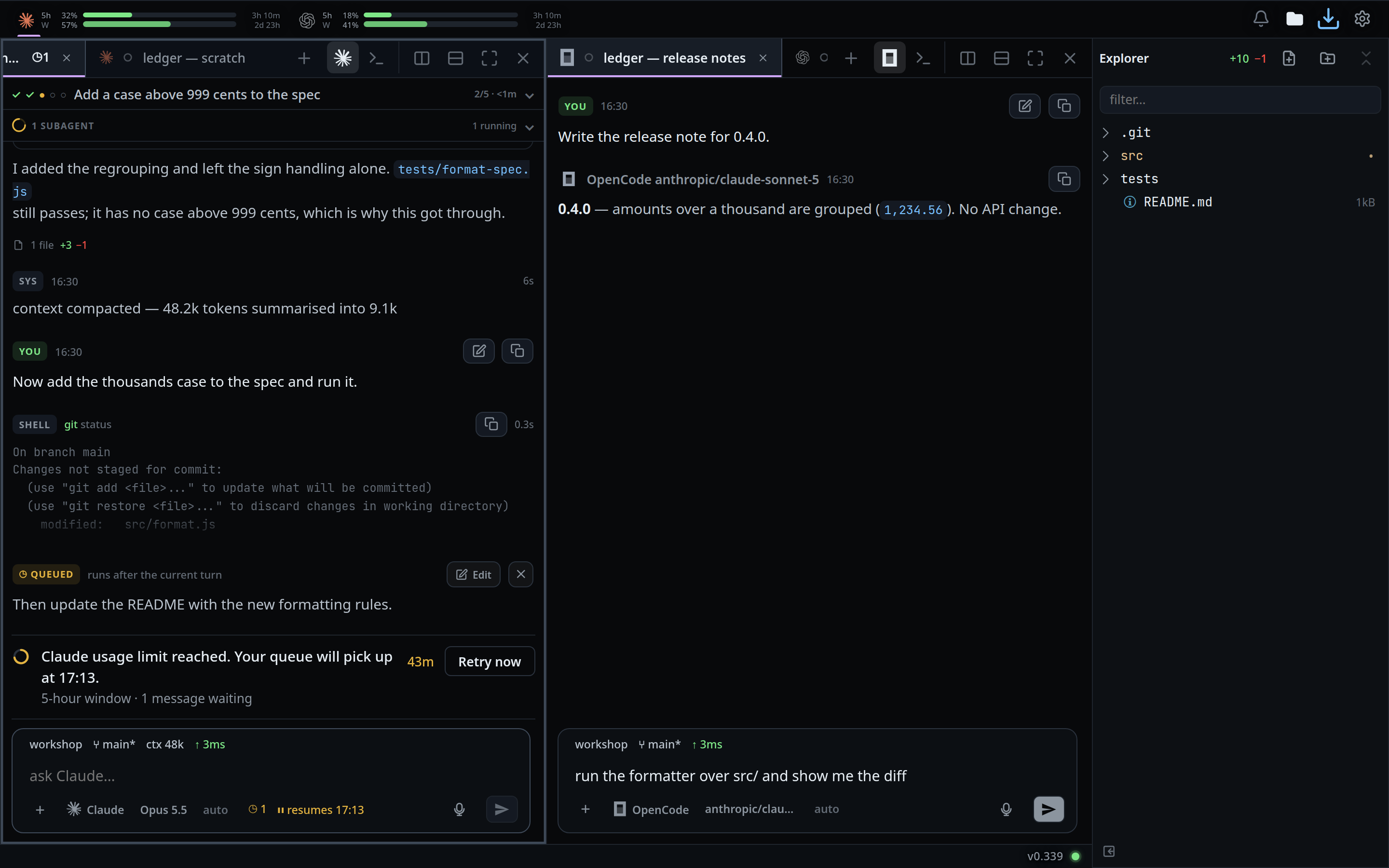
Each pane's header has the same four buttons: split right, split down, zoom (
Zoom pane) and close (Close pane — the tab stays open). Closing a pane closes no tab: its tabs move to the pane that has the focus. On a zoomed pane the zoom button turns intoZoom out, with its corners pointing in; press it to bring the other panes back.The keyboard, tmux style.
Ctrl+Bthen:Key What it does %Split right "Split down ←→↑↓Focus the pane that way oFocus the next pane zZoom the focused pane, or unzoom xClose the focused pane Without the prefix:
Alt+Shiftand an arrow moves to the pane that way (⌘⌥and an arrow on a Mac).Ctrl+Dsplits right andCtrl+Shift+Dsplits down (⌘Dand⇧⌘Don a Mac).Ctrl+PageDownandCtrl+PageUpmove through the focused pane's own tabs.Ctrl+TandCtrl+Nopen a new thread in the focused pane, andCtrl+Pthe files (⌘on a Mac). Bare, the same two keys page the focused pane's transcript.
What you see
- The focused pane wears a two-pixel ring, drawn over its header row as well as its transcript, so the whole pane reads as the selected one. Its header row is lit with it.
- The top tab strip is hidden while panes are up. Each pane's strip is the same strip at the same size, and scrolls sideways with a mouse wheel.
- Each pane has two header rows under its tabs: its thread's plan strip, then its subagents strip, each at the pane's full width with a rule under it. Its footer floats over the foot of its transcript and holds two things — attachments you have added, then the composer or its stub, both the box's width and centred. The status line rides inside the box, in the gap between the effort dial and the mic: the branch of its folder, its context, its queue, what it is waiting on and what the last turn changed. The transcript uses the whole pane and scrolls under the box at its sides, unfaded, and its last message stops above the footer. The slash menu and the agent, model and effort lists open above the box and over the transcript, without moving it. A pane on a folder other than the one in front shows no branch rather than another thread's.
- The focused pane holds the composer, with the agent, the model and the effort of the thread that pane is showing — unless it is empty.
- A pane with no tabs says
empty pane: New thread (Ctrl+T)in its strip, is drawn darker than the panes around it, and shows the new-thread page below it — the VCode logo, the plus andnew thread— with no transcript, no plan or subagents strip, no status line, no shell panel and no composer, even when it has the focus. With the focus on it, a key that would type — a letter, Space or Enter — opens the new-thread card, as the plus does. A dictation still running when the focus lands there is stopped, and what was said stays in the draft. Dragging a tab out leaves one behind; closing a tab with its cross takes the pane with it. Close an empty pane with the ✕ in its header. - The cap is per direction: six panes side by side and six stacked. A split
beside a full row is refused with the toast
6 panes across at most, and one under a full column with6 panes down at most. Each pane's own row and column is what counts, so a layout can be ragged: a column of six sits beside a single pane that still splits downwards. Long before either cap a pane runs out of pixels — six across wants a 4K monitor. - Where a split would be refused, a drop on that edge joins the pane instead, so the highlight is the whole pane rather than half of it. The pane a dragged tab leaves stays up, so even its last tab frees no room for a new pane.
- A zoomed pane fills the whole area; moving the focus to another pane unzooms, and while it is zoomed there is no line to drag.
- The line between two panes is one pixel, and the band that catches the pointer is a few more: it lights up when the pointer is on it and stays lit while you drag. A sideways band straddles the line, two px either side of it, which leaves every lane of tabs flush with its pane's edge; a stacked one sits wholly above the line, clear of the tabs of the pane below. The tab that starts a lane draws no edge of its own against that line, so the ring of the pane you are in and the tab in the pane beside it have one hairline between them and not two. A line moves the two panes it sits between and leaves the rest of the layout alone: drag the top line of a stack of three and the third pane does not move.
- A horizontal line belongs to one column, so dragging it changes the heights in that column and nothing in the column next to it. The columns beside each other can be cut up quite differently.
- A pane dragged down to 160px stops there, and so does the pane on the other side of the line. Two panes with less than 320px between them share it evenly and the line does not move at all. The clamp beats the snap: a line that would leave either pane under 160px is no target at all, so the handle does not brighten for a line the drag cannot land on. What stops the drag is the line behind each of the two panes, so a line with a pane 200px deep behind it travels 40px and no further.
- A drag only lines up with lines running the same way — a sideways drag with other vertical lines, a stacked one with other horizontal lines — and only with the ones it does not move itself. Lines inside the pair being dragged travel with them, so they are no target. The nearest line within 8px wins.
- During a drag over a pane's body the wash is exactly the pane the drop would make: the whole pane for a join, its top or bottom half for those edges, and half the pane's column for the left and right ones. Over a strip there is no wash: the caret and the gap say where the tab goes. Dropping a tab back where it started changes nothing.
- A tab dropped on a strip keeps that place everywhere, since one order runs through every pane: it is the tab order the drawer and the phone show too. A tab dropped on a pane's body goes to the end of that pane's strip, whichever pane it came from.
- A pane header carries the pane's buttons, so a strip with several tabs is usually already scrolling. Then no gap opens — the caret alone says where the tab goes.
- A drag that drifts a little below its own strip is still the strip's reorder, not a split, and a drag a little below another pane's strip is still that pane's lane. On a short pane that band narrows, so the top edge of the pane stays reachable and a tab can still be dropped above it.
Options and settings
| Option | Default | What it changes |
|---|---|---|
| Panes across at most | 6 | MAX_ACROSS in public/split-layout.js |
| Panes down at most | 6 | MAX_DOWN, so MAX_LEAVES is 36 |
| Smallest pane | 160px | MIN_PANE, what a divider drag stops at |
| Snap reach | 8px | SNAP_PX, how near another line a drag lands on it |
| Prefix window | 1500ms | How long Ctrl+B waits for the key after it |
localStorage wb.panes |
absent | The saved tree. Absent is one pane |
Limits and known gaps
- Wide windows only. The layout is remembered, so a narrow window comes back to panes when you widen it again.
- The layout is per browser, not per account: another device has its own. The place you dragged each line to is saved with it.
- The lines are dragged with a pointer. There is no keyboard resize and no double-click back to an even split, and a new pane always opens on half of the one it split.
- There is no key held to turn the snap off, so a line cannot be left sitting one or two px away from another one. Anywhere past 8px is yours.
- Only the two panes either side of a line move. There is no dragging a whole row or column of a ragged layout at once.
- A layout saved before columns is rearranged when it loads. A stack that ran across two columns is cut into one stack per column, keeping your panes, their tabs and the focus; the lines land near where they were, not exactly on them.
- A pane restored on a reload opens on its newest message, the way a tab does. Where you had scrolled it to is not remembered.
- A tab lives in one pane at a time. The same thread cannot be open in two panes.
- Empty panes stay until you close them, and they count against the six across and six down. Drag tabs about for long enough and a layout of two threads can refuse to split, with the rest of it blank.
- Each visible pane holds its own stream. Over the tunnel that is HTTP/2 and they cost nothing; over plain http on a LAN Chrome allows six connections per host, so past six panes the rest wait for a free one.
- A pane's tabs stay in the order the top strip would show them, so dragging a tab inside its own strip reorders it everywhere.
- Dragging works with a mouse or a finger, but panes need a wide window, so in practice it is a mouse. A finger has to hold still on the tab first, since a sideways swipe scrolls the strip.
- There is no dragging a tab out to a new window, and no dropping one onto the top bar or the explorer.
- A tab closed on another device while you are dragging it is not moved: the drop does nothing and the strip is drawn back.
- In private browsing
localStoragethrows; panes still work and simply are not remembered. - There is one composer, one microphone and one dictation session, moved to whichever pane has the focus. You cannot type into two panes at once, and a recording belongs to the pane it started in. Clicking into another pane to copy a line moves the box, so a half-written message goes to that pane's stub until you come back.
- The arrow chord with no pane that way — one pane, or the edge of the window — is left to whatever has the focus. With a pane that way the move wins, which is the cost of having the shortcut at all. Held down it crosses the panes and stops at the last one, rather than carrying on into the box it has just landed in.
- The Windows key with
Shiftand an arrow is not bound: GNOME and Windows both move a window to the next monitor with it, and the page never sees it. If something on your desktop has taken the arrow chord too, useCtrl+Bthen an arrow. - The offline banner and the key tray keep the foot of the window, and the panes stop above them.
- A pane shorter than about 135px of the frame's own — 148 on the screen — has no room for its header rows and the composer together: the transcript goes first, then the plan and subagents strips, then the entry itself shrinks to keep the row of keys under it. A stub gives the same room in the same order, so two panes still line up. Four panes on a short window is where you see it.
- The row of keys does not shrink: it needs about 190px of the frame's own, and
under that the send key is drawn past the pane's edge, where the pane's own
overflow cuts it off.
MIN_PANEstops a seam drag at 160px but splitting a pane that is already there halves it anyway, so a pane can be made that narrow./modeland/effortstill work in one. - A box grown past its one line by a long message stands taller than the stubs beside it. The stub is the size the box opens at.
Related
- navigation-and-commands — every gesture, key and command, phone and desktop
- wide-layout — the desktop layout panes need
- switch-tabs — the strip each pane's header is
- close-and-reopen-tabs — closing a tab, which is not closing a pane
- icon-legend — what the split, zoom and close marks mean
- jump-to-latest — the newest message each pane opens on, and the pill back to it
- page-through-the-transcript — the bare page keys, which move the focused pane
- alt-moves-a-word — the Alt chord the composer takes, without Shift