
Add a computer from app.v-code.dev
Copy one command from app.v-code.dev and paste it into a terminal on the computer you want to add. It installs VCode, links the computer to your account and pairs the browser that showed the command. That browser then opens VCode on it. You type no email, no code, and answer no fingerprint question.
Why you would use it
You are logged in on app.v-code.dev and want a new computer in your box list. Linking a box and pairing a browser used to be two steps, each with a code to read off one screen and type into another. The command does both. Use it on a new computer, or on one already installed to pair this browser with it.
How to use it
Log in on app.v-code.dev (see use-the-app). Under the box list, tap Add a computer (
#rs-boxes-add). With no box yet, the list readsNo computer is linked to <email> yet.and the same button is under it.The Add a computer screen (
#rs-add) shows the command (#rs-add-command) underPaste this into a terminal on the computer you want to add. It works once, within 15 minutes.Pick the computer's system in the combo box (#rs-add-os): Linux, Windows (WSL2) or macOS. macOS gives the samecurlcommand as Linux. It starts on Windows in a Windows browser, on macOS in a Mac browser and on Linux in any other. The arrow keys move through the list, Enter picks and Escape closes it.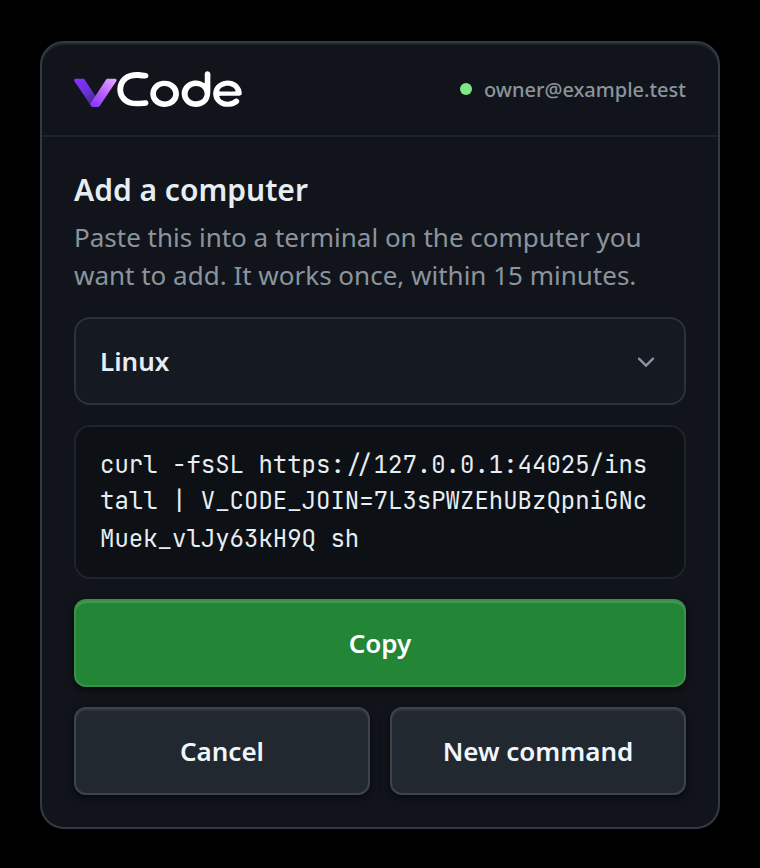
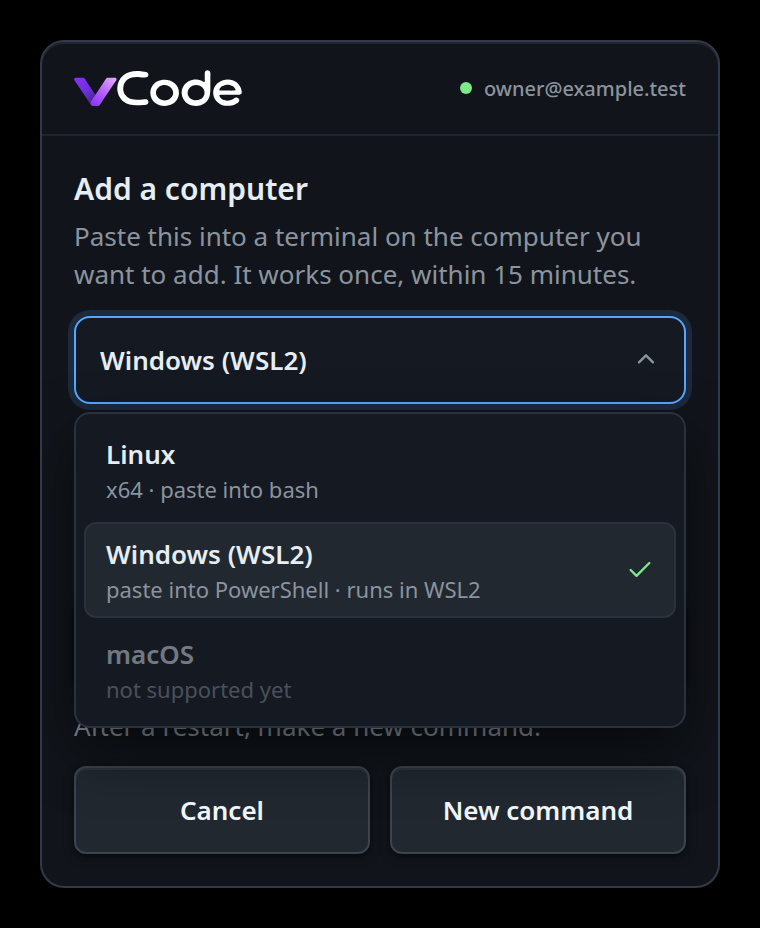
On Linux:
curl -fsSL https://v-code.dev/install | V_CODE_JOIN=<code> shOn Windows, in PowerShell:
$env:V_CODE_JOIN='<code>'; irm https://v-code.dev/install.ps1 | iexThe Windows command has a line under it (
#rs-add-windows):If this PC already has WSL2, it uses it and installs nothing on Windows. If not, it installs WSL2, asks for administrator rights and a restart; after the restart, make a new command.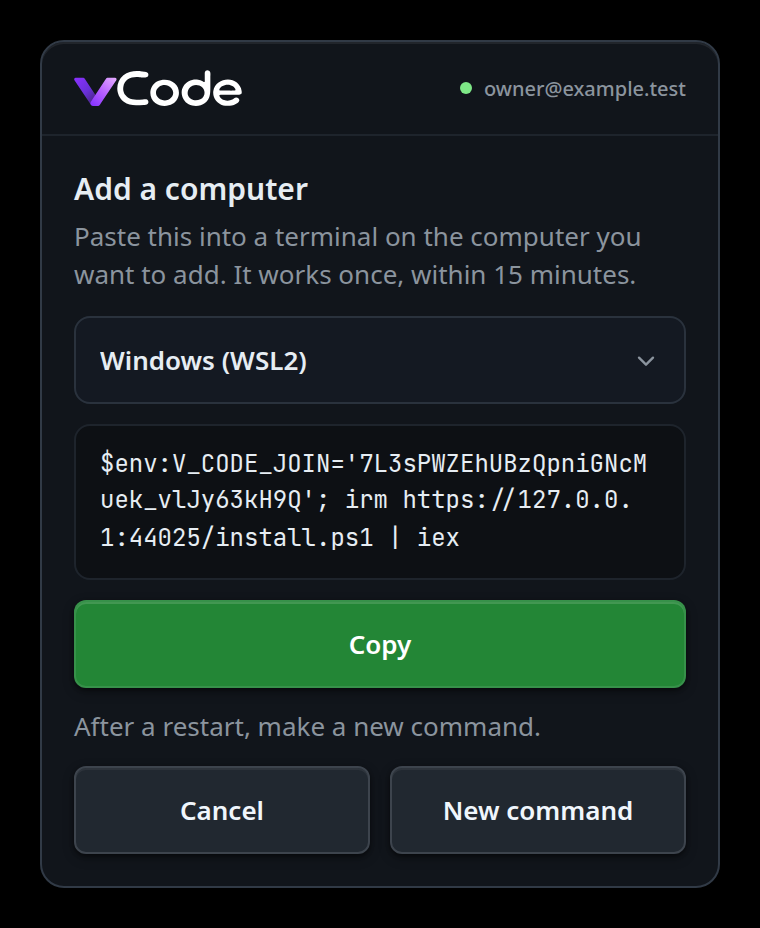
Tap Copy (
#rs-add-copy). It readsCopiedfor two seconds.Paste the command into a terminal on the other computer, logged in as the user VCode should run as. The installer runs as in install-on-linux or install-on-windows. At the end it joins, and prints:
v-code: linked to you@example.com
v-code: paired with Chrome on Linux
v-code: your browser opens it now
The second line names the browser that showed the command.
Leave the page open. Within a few seconds of the join it leaves the Add screen and opens VCode on the new computer. There is no pairing screen.
On a computer that is already installed, the same command joins without
reinstalling: the installer prints v-code: already installed: <version>; joining, renders no unit and restarts nothing. From a terminal on such a box,
the join is v-code box join, which reads the code on stdin:
printf '%s\n' '<code>' | v-code box join
Cancel (#rs-add-cancel) tells the site to retire the command, forgets it and
goes back to the box list. If the site does not answer, the page still forgets
the command, and the box list reads The site did not hear the cancel, so the command works until it expires: <reason>. New command (#rs-add-new) makes a
new one; the site retires the old one when it makes the new one, so only the
newest command works.
What you see
- While the page waits, the command stays on screen and the page asks the site every 3 seconds whether the join has happened.
- While the site does not answer (no network, busy, or down), the page asks
again after 2 seconds, then 4, 8, and so on up to once a minute, or later
when the site says how long to wait. The command stays on screen. If the site
has still not answered a minute after the command's 15 minutes run out, the
page stops asking and shows
This command has expired. - When the join lands before the new computer is on the router, the page reads
Waiting for <name> to start…and tries again until it is.<name>is the computer's name. Then VCode opens. - When the new computer is on the router but does not know this browser yet,
the page shows the same
Waiting for <name> to start…and tries again every 2 seconds. After the fifth refusal it goes back to the box list, which readsThe site's answer does not match this command. Make a new one.The computer refuses a browser when the site's answer to the join did not match the command. A reload after that shows the box list, not that computer. - A reload while the page waits comes back to the same command and keeps waiting.
- After the join the page keeps the new computer's key, so a reload opens it with every other box you have paired. A join started from the box pick over running VCode reloads the page when it lands (work-on-several-boxes).
What the page shows under the screen (#rs-err) when it does not open a box:
| Message | What happened | What to do |
|---|---|---|
This command has expired. |
15 minutes passed, or the site has no join for this browser. | Tap New command and run the new one. |
The computer could not join: it is linked to another account |
The computer's box is linked to another VCode account. | Unlink it there (v-code box unlink), then make a new command. |
The computer could not join: linking a computer needs a premium plan |
The account is not premium. | Renew on the account page. |
The computer could not join: the account has too many devices |
The account holds as many boxes as it can. | Remove a box on the account page, then make a new command. |
The computer could not join: the computer's signature did not check |
The box's proof failed at the site. | Make a new command. |
The computer could not join: <code> |
Any other refusal, shown by its code, such as bad_code when the browser that made the command was removed from the account. |
Make a new command. |
The site's answer does not match this command. Make a new one. |
The site named a box that cannot prove it ran this command, and the page pins nothing. Or, on the box list, the new computer refused this browser five times. | Make a new command. |
This browser cannot copy here. Select the command and copy it. |
The browser has no clipboard access here. | Select the command by hand; one tap selects all of it. |
The site did not hear the cancel, so the command works until it expires: <reason> |
Cancel could not reach the site. The page forgot the command anyway. | Nothing, unless the command leaked: then tap Add a computer and New command, which retires it. |
When a join ends in one of the first six, the command disappears; New command
makes another. A mint
the site refuses shows the site's text in the same place, such as
linking a box needs a premium plan.
What the terminal prints when it does not join:
| Output | What to do |
|---|---|
v-code: V_CODE_JOIN is not a join code; copy the command again |
The value is not 34 letters, digits, - and _. Copy the whole command again. The installer checks this before it downloads anything, and never prints the value. |
v-code: V_CODE_JOIN is for an install; --update never links |
Drop --update. |
v-code: this release does not support V_CODE_JOIN |
The release does not know the join yet. Install without V_CODE_JOIN and link with your email (link-this-box). |
The join did not complete: 400 that code is wrong, used or expired; make a new command under Add a computer |
The code was used or is over 15 minutes old. Make a new command. |
The join did not complete: 409 this box is linked to another account; unlink it first |
Run v-code box unlink, then make a new command. |
The join did not complete: 403 This account needs premium to link a box. |
Renew on the account page. |
The join did not complete: 502 the site's answer does not match this join code |
The box writes nothing. Make a new command. |
The number is the box's HTTP status. Each The join did not complete: line is
followed by Make a new command under Add a computer. The install itself
stays: VCode runs, unlinked or linked as it was.
v-code box join with the code as an argument stops with
v-code: join reads the code from stdin, never from the command line.
Options and settings
| Option | Default | What it changes |
|---|---|---|
System (#rs-add-os) |
Windows (WSL2) in a Windows browser, else Linux | Which command shows. The code is the same. |
| Code lifetime | 15 minutes | Fixed. A join that lands in the last seconds still opens. |
| Uses | 1 | Fixed. The site spends the code at the first redeem, even one it refuses. |
V_CODE_JOIN |
(unset) | The join code, in the installer's environment. Never an argument. |
Limits and known gaps
- The list offers Linux x64, Windows (through WSL2) and macOS on Apple silicon or Intel (install-on-macos).
- Whoever runs the command first gets this browser. If the command leaks, in a screen share or a chat, and someone else runs it within 15 minutes, their computer links to your account and the page opens it. The page shows the computer's name while it waits and after it opens: check it is yours.
- A Windows install that needs a restart outlives the code. After the restart, make a new command.
- The code is in the shell history and the terminal's scrollback. The site part is single use, and the secret part is useless once the join is done or the code has expired.
- Cancel retires the command on the site only when the site answers. When it does not, the command stays valid until it is used or 15 minutes pass. Run after that, it still links the computer and pairs this browser, but the page does not open it.
- A Cancel tapped while New command is still getting a code from the site retires that code too, once it arrives.
- The command pairs one browser. Pair any other phone or browser with a pairing code (add-a-phone).
- The page need not stay open. A join that lands while it is closed still links and pairs; open app.v-code.dev again in the same browser and it finds the join and opens the box, even after the 15 minutes.
Related
- use-the-app — logging in and picking a box on app.v-code.dev
- work-on-several-boxes — the new computer's tabs beside the others
- link-this-box — linking with an email code instead
- add-a-phone — pairing any other phone or browser with a code
- install-on-linux — what the command installs on Linux
- install-on-windows — the same on Windows, through WSL2
- install-on-macos — the same command on a Mac